
How to Make a Histogram with Pandas Data
Imagine you’re a detective, handed a mountain of clues. Each clue on its own might not tell you much, but organized properly, they paint a clear picture. That’s what a histogram does for data. It takes a jumble of numbers and transforms them into an understandable story. And when you combine the power of histograms with the ease of Pandas, the popular Python data analysis library, you’ve got a recipe for insightful exploration. Let’s dive into how you can visualize data distributions effectively using Pandas histograms.
What is a Histogram and Why Use it?
Before we get our hands dirty with code, let’s define what exactly a histogram is. Simply put, a histogram is a graphical representation of the distribution of numerical data. It groups data into bins and shows the frequency (or count) of data points that fall into each bin. Think of it like organizing your spare change – you sort all the pennies together, the nickels, dimes, and quarters, creating distinct piles. A histogram does the same, but for any numerical dataset.
Histograms are useful because they:
- Visualize distributions: See if your data is normally distributed, skewed, or has multiple peaks.
- Identify outliers: Spot unusual data points that deviate significantly from the rest.
- Summarize data: Provide a quick overview of the data’s central tendency and spread.
- Compare datasets: Easily compare the distributions of different datasets.
Setting up Your Environment
To follow along with this tutorial, you’ll need Python installed, along with the Pandas and Matplotlib libraries. If you don’t have them yet, you can install them using pip, the Python package installer:
pip install pandas matplotlibOnce installed, import the necessary libraries in your Python script or Jupyter Notebook:
import pandas as pd
import matplotlib.pyplot as plt
We use Pandas for data manipulation and Matplotlib for plotting. The `plt` alias is a standard convention for Matplotlib’s `pyplot` module, which provides an interface for creating plots.
Creating a Basic Histogram with Pandas
Let’s start with a simple example. We’ll create a Pandas Series (a one-dimensional labeled array) containing some random data and then generate a histogram from it.
# Create a Pandas Series with random data
data = pd.Series([1, 3, 4, 5, 6, 8, 8, 9, 10, 12, 15, 15, 17, 18, 20])

# Create a histogram
data.hist()

# Display the histogram
plt.show()
This code will produce a basic histogram. Pandas uses Matplotlib under the hood to create the visualization. The `hist()` method is called directly on the Pandas Series, which simplifies the process. The default settings create a histogram with 10 bins, dividing the data range into equal intervals.
Customizing Your Histogram
The default histogram is a good starting point, but you’ll often want to customize it to better represent your data. Here are some common customizations:
Changing the Number of Bins
The number of bins can significantly impact the appearance and interpretation of a histogram. Too few bins can obscure important details, while too many can make the distribution appear noisy. You can control the number of bins using the `bins` argument:
data.hist(bins=5) # Use 5 bins
plt.show()

data.hist(bins=30) # Use 30 bins
plt.show()
Experiment with different bin sizes to find the one that best reveals the underlying data distribution. A common technique is to use the square root of the number of data points as a starting point for the number of bins.
Adding Titles and Labels
A histogram is much more informative with clear titles and labels. You can add these using Matplotlib’s `title()`, `xlabel()`, and `ylabel()` functions:
data.hist(bins=10)
plt.title('Distribution of Data')
plt.xlabel('Value')
plt.ylabel('Frequency')
plt.show()
Descriptive titles and labels make your histograms accessible and understandable to a wider audience.
Changing the Color and Edge Color
You can customize the appearance of the bars using the `color` and `edgecolor` arguments:
data.hist(bins=10, color='skyblue', edgecolor='black')
plt.title('Distribution of Data')
plt.xlabel('Value')
plt.ylabel('Frequency')
plt.show()
Choosing appropriate colors can improve the visual appeal and clarity of your histogram. Using a contrasting edge color helps to distinguish the individual bars.
Adding Transparency
Transparency can be useful when comparing multiple histograms on the same plot. You can adjust the transparency using the `alpha` argument, which ranges from 0 (fully transparent) to 1 (fully opaque):
data.hist(bins=10, color='skyblue', edgecolor='black', alpha=0.7)
plt.title('Distribution of Data')
plt.xlabel('Value')
plt.ylabel('Frequency')
plt.show()
A subtle transparency can help to reveal overlaps and patterns in the data.
Working with DataFrames
Histograms are particularly useful when working with DataFrames, which are tabular data structures containing multiple columns. You can create histograms for individual columns in a DataFrame using the same `hist()` method.
# Create a DataFrame
df = pd.DataFrame({'A': [1, 3, 4, 5, 6, 8, 8, 9, 10, 12],
                   'B': [2, 4, 5, 7, 8, 9, 9, 11, 12, 14]})

# Create a histogram for column 'A'
df['A'].hist()
plt.show()

# Create a histogram for column 'B'
df['B'].hist()
plt.show()
This will create separate histograms for columns ‘A’ and ‘B’ of the DataFrame.
Creating Histograms for Multiple Columns
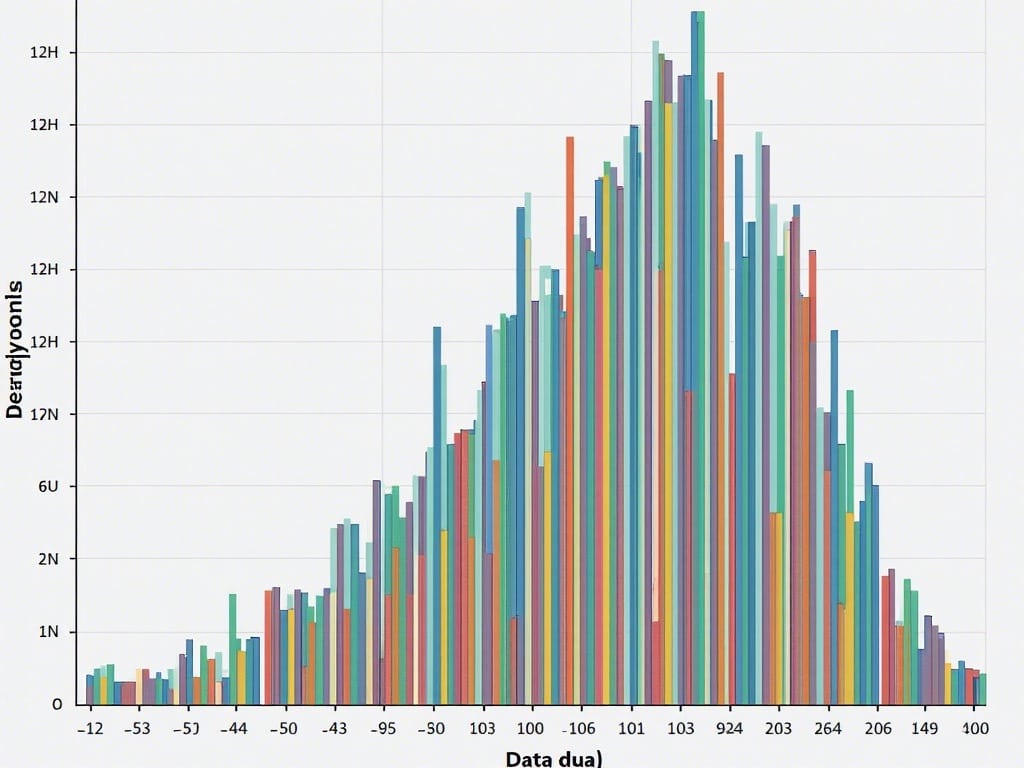
Pandas allows you to create histograms for multiple columns at once. When you call the `.hist()` method on the entire DataFrame, it generates a grid of histograms, one for each numerical column.
df.hist()
plt.show()
This provides a quick visual overview of the distributions of all numerical variables in your DataFrame.
Customizing Histograms for DataFrames
You can apply the same customization options we discussed earlier to histograms generated from DataFrames. For instance, you can specify the number of bins, colors, titles, and labels.
df.hist(bins=15, color='lightgreen', edgecolor='darkgreen')
plt.suptitle('Distributions of DataFrame Columns', fontsize=16) # Add a suptitle
plt.show()
The `suptitle()` function adds an overall title to the entire grid of histograms.
Advanced Histogram Techniques
Beyond the basics, there are several advanced techniques you can use to create more sophisticated and informative histograms.
Overlaying Histograms
Overlaying histograms allows you to compare the distributions of multiple datasets on the same plot. This is useful for identifying differences and similarities between the datasets.
# Create two Pandas Series
data1 = pd.Series([1, 3, 4, 5, 6, 8, 8, 9, 10, 12])
data2 = pd.Series([2, 4, 5, 7, 8, 9, 9, 11, 12, 14])

# Overlay the histograms
data1.hist(bins=10, alpha=0.5, label='Data 1')
data2.hist(bins=10, alpha=0.5, label='Data 2')

plt.legend(loc='upper right')
plt.title('Comparison of Two Distributions')
plt.xlabel('Value')
plt.ylabel('Frequency')
plt.show()
By adjusting the transparency (`alpha` argument), you can see both histograms clearly. The `legend()` function adds a legend to identify each dataset.
Using Different Binning Strategies
Besides specifying the number of bins, you can also customize the bin edges. This can be useful when you have specific ranges you want to analyze.
# Define custom bin edges
bins = [0, 5, 10, 15, 20]

# Create a histogram with custom bin edges
data.hist(bins=bins, edgecolor='black')
plt.title('Histogram with Custom Bin Edges')
plt.xlabel('Value')
plt.ylabel('Frequency')
plt.show()
This allows you to create bins of unequal width, focusing on specific intervals of interest.
Density Histograms
Instead of showing the frequency (count) of data points in each bin, you can normalize the histogram to show the probability density. This is useful when comparing datasets with different sizes.
data.hist(bins=10, density=True, edgecolor='black')
plt.title('Density Histogram')
plt.xlabel('Value')
plt.ylabel('Density')
plt.show()
The `density=True` argument normalizes the histogram, so the area under the histogram sums to 1.
Kernel Density Estimation (KDE)
Kernel Density Estimation (KDE) is a non-parametric way to estimate the probability density function of a random variable. You can think of it as a smoothed version of the histogram. Pandas provides a `plot.kde()` method to create KDE plots.
data.plot.kde()
plt.title('Kernel Density Estimation')
plt.xlabel('Value')
plt.ylabel('Density')
plt.show()
KDE plots can be useful for visualizing the underlying distribution of data without being constrained by the binning of a histogram. They can also be overlaid on top of histograms for a more complete picture.
data.hist(bins=10, density=True, alpha=0.5, label='Histogram')
data.plot.kde(label='KDE')
plt.legend()
plt.title('Histogram with KDE Overlay')
plt.xlabel('Value')
plt.ylabel('Density')
plt.show()
Real-World Examples
Histograms can be applied to a wide range of real-world datasets.
- Analyzing Sales Data: Visualize the distribution of transaction amounts to identify typical purchase sizes and potential outliers.
- Exploring Customer Ages: Understand the age demographics of your customer base to tailor marketing strategies.
- Studying Exam Scores: Analyze the distribution of exam scores to assess student performance and identify areas for improvement.
- Monitoring Website Traffic: Examine the distribution of page load times to identify performance bottlenecks.
These are just a few examples. The possibilities are endless. Experiment with your own datasets and see what insights you can uncover.
Conclusion
Histograms are a powerful tool for visualizing and understanding data distributions. By combining the flexibility of Pandas with the plotting capabilities of Matplotlib, you can create insightful histograms that reveal hidden patterns and anomalies in your data. Whether you’re analyzing sales figures, customer demographics, or website traffic, histograms provide a valuable way to summarize and explore your data. So, go forth and visualize – you might just uncover the next big insight hidden within your datasets!